# How to Add Text to a Video on iPhone

> Add text to a video on your iPhone, free and on-device. Here's how to drop words over a clip, style them, and save it back out as a video. Nothing uploads.

You've got a video clip and you want some words on it. A title, a caption, a name, a date. The kind of text people put on a Reel or a TikTok before they post it. Your iPhone can do this without sending the clip off to some website, and you don't need a subscription to start. Here's the whole flow, plus the one spot people get stuck on.

<video class="post-video" autoplay muted loop playsinline preload="metadata"><source src="/assets/blog/text-video-demo.mp4" type="video/mp4"></video>
<span class="post-video-cap">A title added over a clip in Jodu, then saved back out as a video.</span>

> **TL;DR:** Open the clip in Jodu, tap the Text tool and type, drag the words where you want them, then export as **Animated Video**. Jodu plays your footage and bakes the text right into a new video file, all on your phone. Free exports carry a small watermark, which Pro removes.

## The short version

<div class="steps">

<div class="step"><div class="step-num">1</div><div class="step-text"><p><strong>Add your video.</strong> Open Jodu, start a project, and tap <strong>Add Media</strong>. Pick a clip from your gallery, or record a new one. Clips can be up to 15 seconds, and a quick filmstrip lets you trim down to the part you want.</p></div></div>

<div class="step"><div class="step-num">2</div><div class="step-text"><p><strong>Add a text layer.</strong> Tap the <strong>Text</strong> tool and type your words. They drop onto the video as their own layer that sits on top of the footage.</p></div></div>

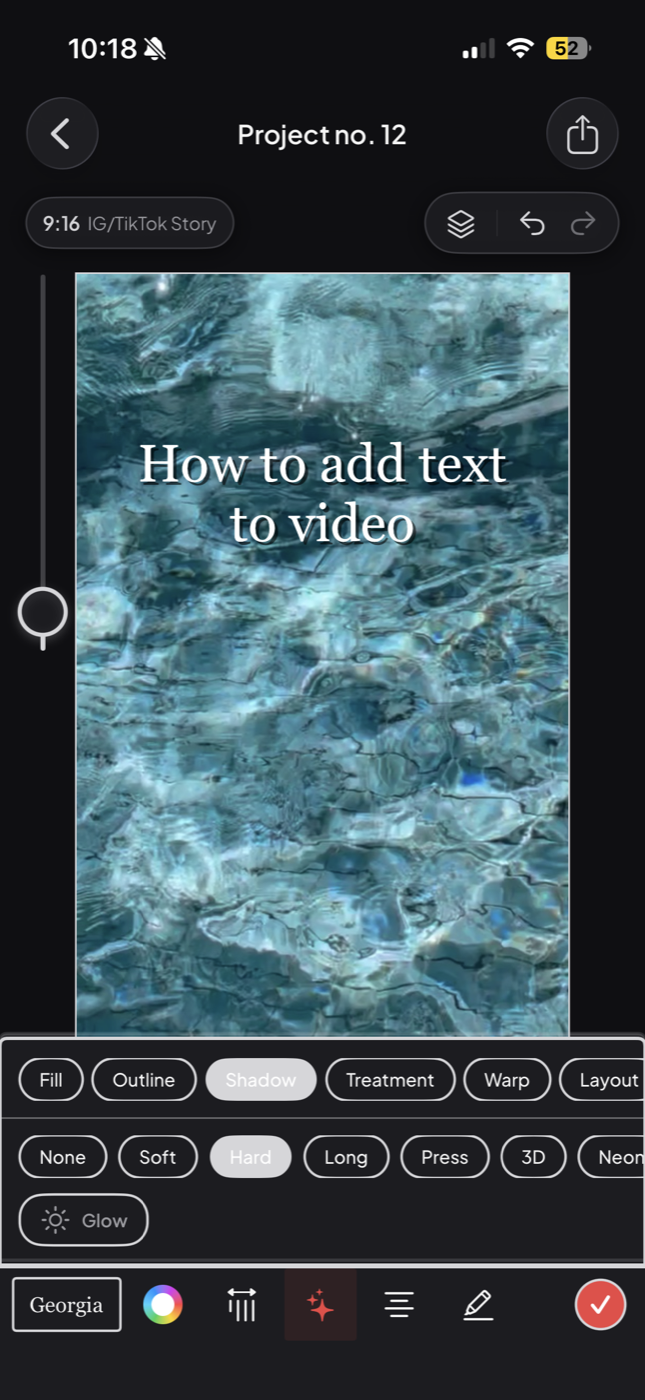
<div class="step"><div class="step-num">3</div><div class="step-text"><p><strong>Style it and place it.</strong> Pick a font and color, drag the text where you want it, and pinch to resize. Want see-through letters with the video showing through? Use a hollow outline. More on the styles below.</p></div><figure class="step-media"><img src="/assets/blog/text-video-style.png" alt="Jodu's text styling panel open over a video clip, with the Shadow tab and a Hard shadow selected."></figure></div>

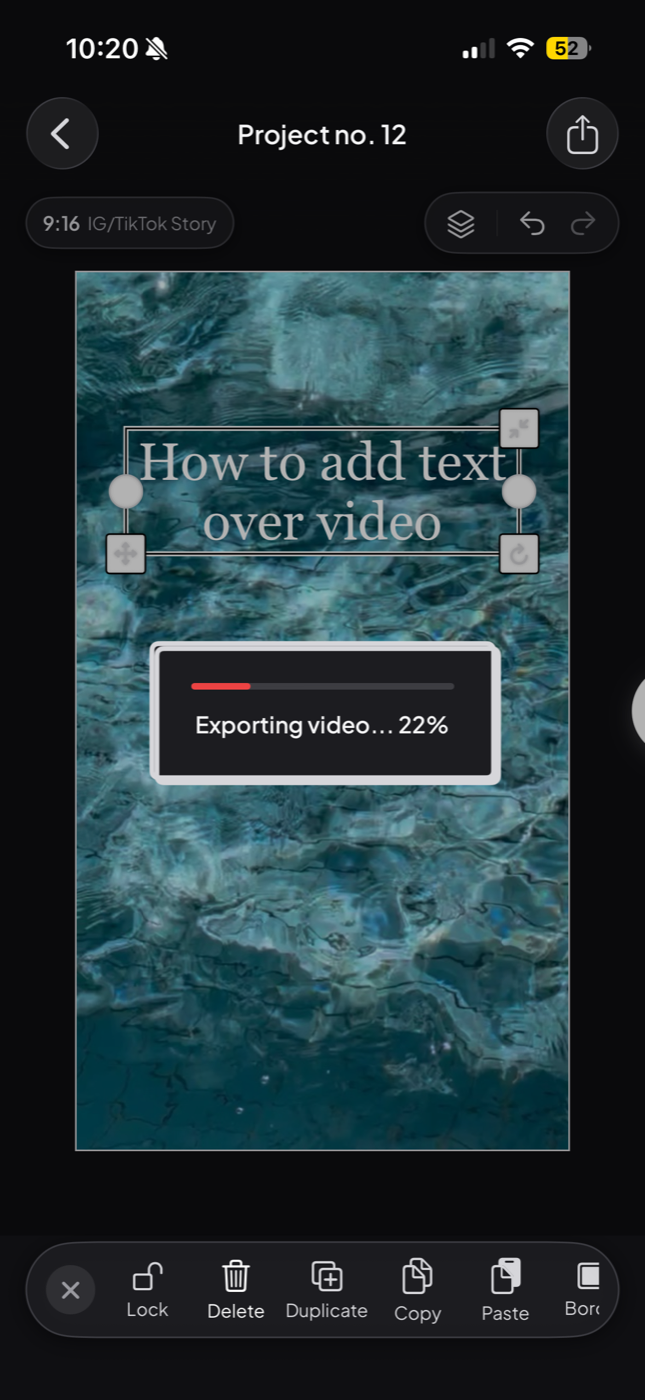
<div class="step"><div class="step-num">4</div><div class="step-text"><p><strong>Export as a video.</strong> Tap the share icon and choose <strong>Animated Video</strong>. Jodu plays your footage with the text baked over it and writes a new MP4 to your camera roll. Flip on <strong>Clip sound</strong> first if you want to keep the audio.</p></div><figure class="step-media"><img src="/assets/blog/text-video-export.png" alt="Jodu exporting the video, showing an Exporting video progress bar over the clip."></figure></div>

</div>

That's it. The only thing worth slowing down on is step 4, because the menu name throws people off.

## Why the button says "Animated Video"

When you go to export, you'll see a few options. **Image** saves a still. **Animated Video** is the one you want any time your project has real footage in it, even if your text isn't doing anything fancy. The name is about the moving video inside, not about the text. So pick **Animated Video** and your clip plays in the saved file with the words sitting on top.

If you also gave the text some motion (letters typing out, a shimmer sweep, that sort of thing), this same export bakes that in too. We wrote a separate guide on [animated text over video](/blog/animated-text-video/) if that's what you're after.

## The text styles, and which to reach for

Tap into the styling panel after you add text and you get a handful of looks. Here's when each one earns its place over a video.

| Style | What it does | Good for |
| --- | --- | --- |
| Solid fill | Plain colored letters | Captions you want people to actually read |
| Hollow outline | See-through letters, the video shows through the middle | Big title words over a busy clip |
| Shadow or outline | A dark edge or drop behind the letters | Keeping white text readable on a bright video |
| Gradient or chrome fill | A color sweep or shiny metal look | A title that wants to feel like a poster |

The one rule worth remembering: a video moves, so your text needs an edge or a shadow to stay readable as the background shifts. White letters on a clip that goes from sky to pavement will vanish half the time. A thin outline fixes it.

## Does this upload my video anywhere?

No. Jodu does the whole thing on your iPhone with [AVFoundation](https://developer.apple.com/av-foundation/), Apple's built-in video framework. Your clip never leaves the device, and the export works with no signal. That matters more for video than for photos, since clips are personal and large, and you don't want them sitting on someone's server.

When you hit export, Jodu walks through your footage frame by frame, draws your text (and stickers, and anything else you added) onto each one, and writes the result to a fresh video. It takes a little longer than saving a photo. Keep the app open while the bar fills.

## A few things that make it look better

- **Give text an edge.** An outline or shadow keeps words readable as the video changes behind them. This is the single biggest difference between "made on a phone" and "made on purpose."
- **Keep titles short.** Big warp and gradient looks are built for a few words. Long sentences want a plain fill so they stay legible.
- **Mind the safe zone.** If the clip is headed for Reels or TikTok, keep text away from the bottom third and the right edge. That's where the app's own buttons and caption sit.
- **Layer more than text.** A video is just another layer in Jodu, so you can drop a sticker, a torn-paper frame, or a photo cutout on top too. Here's how to [cut a subject out of a photo](/blog/remove-photo-background-iphone/) if you want one floating over the clip.
- **Trim before you style.** Cut the clip to the length you want first, so you're not styling text against a moment that won't make the final cut.

## What you can put over a clip

You're not limited to words. Once a video is on the canvas, it behaves like any other layer, so you can stack things on it:

- **Text**, styled however you like.
- **Stickers** from the built-in library, hundreds of them.
- **Photo cutouts**, your own subjects lifted out of a still and dropped on the video.
- **Frames and textures** for a scrapbook or film-strip feel.

Everything bakes into the one exported video. That's the whole idea behind a [digital scrapbook app](/blog/digital-scrapbook-app/), just with a clip moving underneath instead of a flat background.

## FAQ

### How do you add text to a video on iPhone for free?
Open the clip in a free app like Jodu, tap the Text tool and type, then drag the words into place and style them. Export the project as Animated Video and Jodu saves a new clip with the text baked in. It all runs on your phone, with no upload and no account.

### Can I add text to a video without an app that watermarks it?
Jodu lets you add and style text for free. Free exports carry a small Jodu watermark, and a Pro upgrade removes it. The editing itself isn't limited.

### Why is the export called "Animated Video" if my text isn't animated?
The name refers to the moving footage in the file, not the text. Any project that contains a real video clip uses the Animated Video export, whether or not your text moves. Your clip plays in the saved file with the words on top.

### How long can the video be?
Up to 15 seconds per clip, and you can place up to four clips in one project. A trim tool lets you pick the exact stretch you want before you start adding text.

### Does adding text upload my video to a server?
No. Jodu renders the whole video on your iPhone using Apple's AVFoundation. The clip never leaves your device and the export works offline.

### Can I keep the sound from my clip?
Yes. The Animated Video export has a Clip sound toggle. It's off by default, so flip it on if you want to keep the original audio in the saved video.

<script type="application/ld+json">
{"@context":"https://schema.org","@graph":[
{"@type":"VideoObject","name":"Adding text to a video in Jodu","description":"A title added over a video clip in Jodu and saved back out as a new video, all on-device on iPhone.","thumbnailUrl":"https://jodu.app/assets/blog/text-video-demo.jpg","contentUrl":"https://jodu.app/assets/blog/text-video-demo.mp4","uploadDate":"2026-06-29T08:00:00+00:00","duration":"PT5S"},
{"@type":"HowTo","name":"How to add text to a video on iPhone","description":"Add text to a video on iPhone, free and on-device, and save it back out as a new video with Jodu.","tool":{"@type":"HowToTool","name":"Jodu"},"step":[
{"@type":"HowToStep","position":1,"name":"Add your video","text":"Open Jodu, start a project, tap Add Media and pick a clip from your gallery or record one. Trim it to the part you want; clips can be up to 15 seconds."},
{"@type":"HowToStep","position":2,"name":"Add a text layer","text":"Tap the Text tool and type your words. They drop onto the video as their own layer on top of the footage."},
{"@type":"HowToStep","position":3,"name":"Style it and place it","text":"Pick a font and color, drag the text where you want it, and pinch to resize. Use a hollow outline for see-through letters that show the video behind them."},
{"@type":"HowToStep","position":4,"name":"Export as a video","text":"Tap the share icon and choose Animated Video. Jodu plays the footage with the text baked over it and saves a new MP4 to your camera roll. Turn on Clip sound to keep the audio."}
]},
{"@type":"FAQPage","mainEntity":[
{"@type":"Question","name":"How do you add text to a video on iPhone for free?","acceptedAnswer":{"@type":"Answer","text":"Open the clip in a free app like Jodu, tap the Text tool and type, then drag the words into place and style them. Export the project as Animated Video and Jodu saves a new clip with the text baked in. It all runs on your phone, with no upload and no account."}},
{"@type":"Question","name":"Can I add text to a video without an app that watermarks it?","acceptedAnswer":{"@type":"Answer","text":"Jodu lets you add and style text for free. Free exports carry a small Jodu watermark, and a Pro upgrade removes it. The editing itself isn't limited."}},
{"@type":"Question","name":"Why is the export called Animated Video if my text isn't animated?","acceptedAnswer":{"@type":"Answer","text":"The name refers to the moving footage in the file, not the text. Any project that contains a real video clip uses the Animated Video export, whether or not your text moves. Your clip plays in the saved file with the words on top."}},
{"@type":"Question","name":"How long can the video be?","acceptedAnswer":{"@type":"Answer","text":"Up to 15 seconds per clip, and you can place up to four clips in one project. A trim tool lets you pick the exact stretch you want before adding text."}},
{"@type":"Question","name":"Does adding text upload my video to a server?","acceptedAnswer":{"@type":"Answer","text":"No. Jodu renders the whole video on your iPhone using Apple's AVFoundation. The clip never leaves your device and the export works offline."}},
{"@type":"Question","name":"Can I keep the sound from my clip?","acceptedAnswer":{"@type":"Answer","text":"Yes. The Animated Video export has a Clip sound toggle. It is off by default, so turn it on to keep the original audio in the saved video."}}
]}
]}
</script>

---

Source: https://jodu.app/blog/add-text-to-video-iphone/

A free iPhone app that lets you lay text, stickers, and cutouts over a video clip and save it back out as one. Everything renders on your phone, so nothing uploads.