# How to Separate Two People in a Photo on iPhone

> Separate two people in a photo on your iPhone, free and on-device. Here's how to lift each one on their own, and why some photos split cleanly while others come out as one.

You have a photo with two people in it and you want to separate them, maybe to keep one on their own as a sticker, or to use each of them in a collage. Your iPhone can do this on its own, in about a second, for free, without uploading the photo anywhere. The trick is knowing where to press, and understanding why a few photos give you both people at once instead of just the one.

> **TL;DR:** Open the photo in Jodu, press and hold on the exact person you want, and tap Remove BG. Jodu isolates that one person on-device and leaves the rest behind. If two people are standing apart, press whichever one you want. If they're touching with their backs to the camera, they come out together as a single cutout, which is the honest result when the photo shows no clear line between them.

## The short version

<div class="steps">

<div class="step"><div class="step-num">1</div><div class="step-text"><p><strong>Add the group photo.</strong> Open Jodu, start a project, and drop in the photo. Tap it once to select it.</p></div></div>

<div class="step"><div class="step-num">2</div><div class="step-text"><p><strong>Press and hold on the person you want.</strong> The spot you press is what decides the cut. Hold on the face or body of the one person you're after, and a small toolbar appears.</p></div></div>

<div class="step"><div class="step-num">3</div><div class="step-text"><p><strong>Tap Remove BG.</strong> Jodu lifts that person off the photo in about a second, all on your iPhone. The rest of the group falls away.</p></div></div>

<div class="step"><div class="step-num">4</div><div class="step-text"><p><strong>Add an edge and place them.</strong> Tap Border for a clean sticker outline, or Effects for a torn-paper look. Now you can move, resize, and layer the cutout into a collage.</p></div></div>

</div>

That's the whole flow. The interesting part is what happens behind that one press, because the result depends on what the photo actually shows.

## Why some photos cut cleanly and others don't

Every cutout runs through the same steps on-device. Jodu shrinks the photo for fast analysis, looks for distinct foreground shapes, checks for faces, builds a mask of the person you pressed, and trims to the result. What changes from photo to photo is how many separate people the photo lets it see.

There are three cases worth knowing, and they cover almost everything you'll throw at it.

### One person, clear background

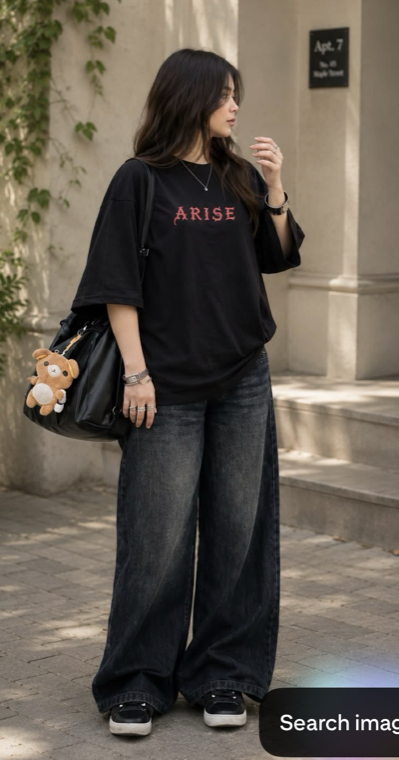
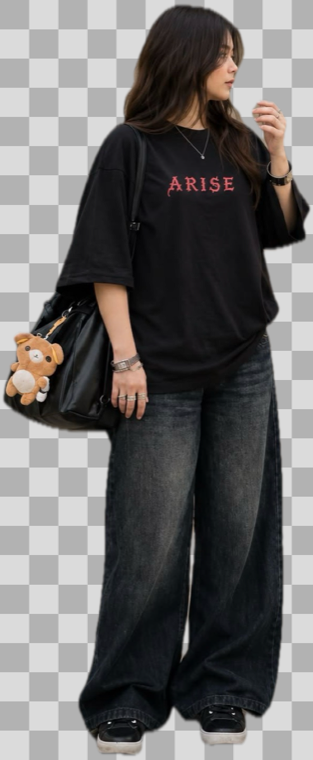
The easy case. There's a single subject standing out from the background, so Jodu finds one shape, cuts along its edge, and hands you a clean cutout. Nothing to choose. This is the same behavior as our guide to [removing a background from a single photo](/blog/remove-photo-background-iphone/).

<div class="dual-figure">
<figure style="flex:0 1 230px;max-width:230px;margin:0;text-align:center;"><img src="/assets/blog/cutout-person-single-input.png" alt="One person standing against a plain background, ready to cut out." style="width:100%;margin:0;"><figcaption style="font-family:var(--f-typewriter);font-size:.78rem;color:var(--c-muted);letter-spacing:.04em;margin-top:8px;line-height:1.3;">The photo</figcaption></figure>
<figure style="flex:0 1 230px;max-width:230px;margin:0;text-align:center;"><img src="/assets/blog/cutout-person-single-result.png" alt="The same person isolated on a transparent background, cleanly cut out." style="width:100%;margin:0;"><figcaption style="font-family:var(--f-typewriter);font-size:.78rem;color:var(--c-muted);letter-spacing:.04em;margin-top:8px;line-height:1.3;">One clean cutout</figcaption></figure>
</div>

### Two people with a gap between them

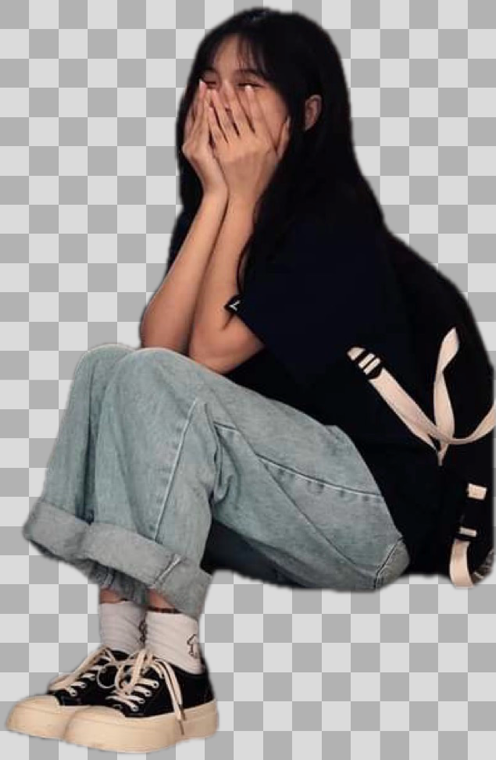
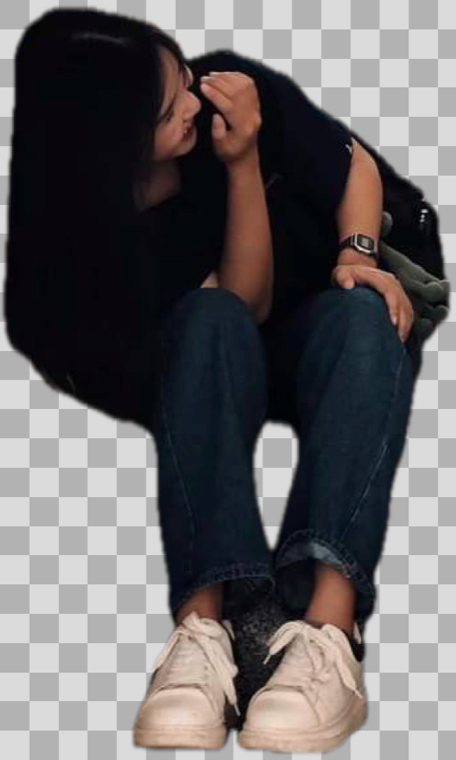
When two people stand with visible space between them, Jodu sees two separate shapes. This is the case people most want and don't realize is possible: press the person on the left and you get just the left person, press the right and you get the right. The gap is what makes it work. It gives the on-device model a clear line to cut along.

<figure style="margin:18px auto;max-width:300px;text-align:center;"><img src="/assets/blog/cutout-person-apart-input.png" alt="The original photo of two people sitting on a staircase with a gap between them." style="width:100%;margin:0;"><figcaption style="font-family:var(--f-typewriter);font-size:.78rem;color:var(--c-muted);letter-spacing:.04em;margin-top:8px;line-height:1.3;">The photo: two people, a gap between them</figcaption></figure>

<div class="dual-figure">
<figure style="flex:0 1 230px;max-width:230px;margin:0;text-align:center;"><img src="/assets/blog/cutout-person-apart-left.png" alt="The left person from a two-person photo, isolated on a transparent background." style="width:100%;margin:0;"><figcaption style="font-family:var(--f-typewriter);font-size:.78rem;color:var(--c-muted);letter-spacing:.04em;margin-top:8px;line-height:1.3;">Press the left, get the left</figcaption></figure>
<figure style="flex:0 1 230px;max-width:230px;margin:0;text-align:center;"><img src="/assets/blog/cutout-person-apart-right.png" alt="The right person from the same photo, isolated on a transparent background." style="width:100%;margin:0;"><figcaption style="font-family:var(--f-typewriter);font-size:.78rem;color:var(--c-muted);letter-spacing:.04em;margin-top:8px;line-height:1.3;">Press the right, get the right</figcaption></figure>
</div>

### Two people touching, backs turned

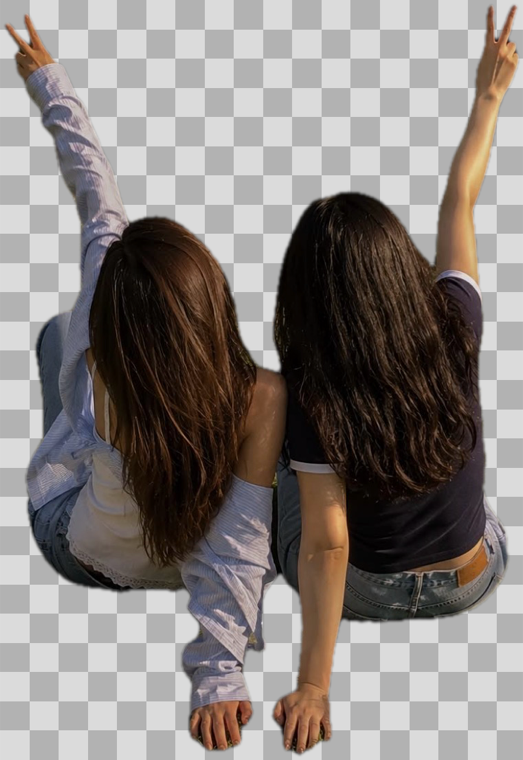
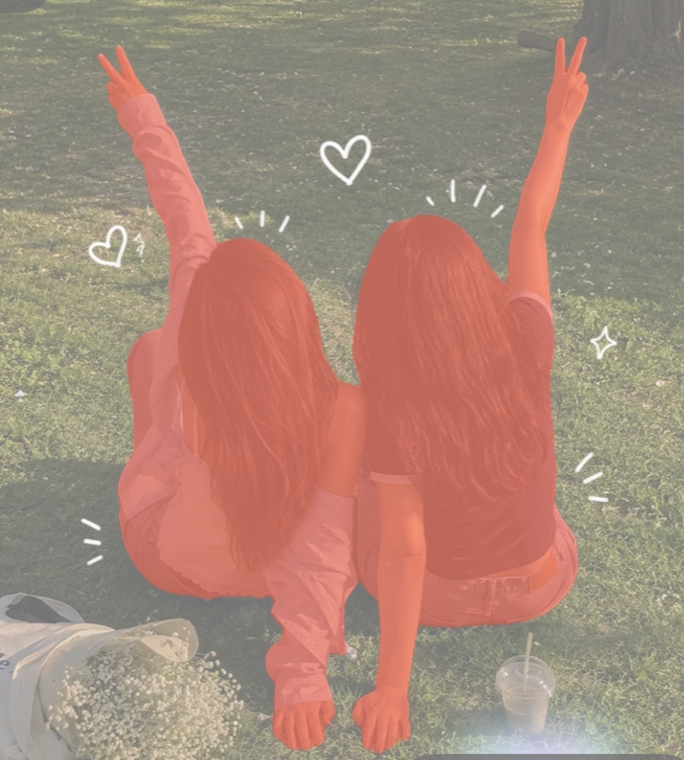
Here's the one that surprises people. Two people sitting shoulder to shoulder, especially with their backs to the camera, read as a single shape. There's no gap and no visible faces to tell them apart, so Jodu cuts them out together as one cutout.

<div class="dual-figure">
<figure style="flex:0 1 230px;max-width:230px;margin:0;text-align:center;"><img src="/assets/blog/cutout-person-merged-input.png" alt="Two people sitting close together with their backs to the camera." style="width:100%;margin:0;"><figcaption style="font-family:var(--f-typewriter);font-size:.78rem;color:var(--c-muted);letter-spacing:.04em;margin-top:8px;line-height:1.3;">The photo</figcaption></figure>
<figure style="flex:0 1 230px;max-width:230px;margin:0;text-align:center;"><img src="/assets/blog/cutout-person-merged-result.png" alt="Both people cut out together as a single shape, since there is no seam to split." style="width:100%;margin:0;"><figcaption style="font-family:var(--f-typewriter);font-size:.78rem;color:var(--c-muted);letter-spacing:.04em;margin-top:8px;line-height:1.3;">Both, as one cutout</figcaption></figure>
</div>

This isn't a bug, and Jodu won't pretend otherwise. When people overlap, drawing a straight line between them slices through a body and leaves you with half a head stuck to the wrong person. Offering one honest "both of them" cutout beats handing you a mangled half. The rule Jodu follows is simple: split when the photo genuinely shows two separable people, and fall back to the combined cutout when it doesn't.

## What each photo gives you

| Your photo | What you get |
| --- | --- |
| One person, clear background | A clean cutout of that person |
| Two or more people with space between them | Press any one of them to lift just that person |
| People touching with no faces visible | They come out together as a single cutout |

## How it works under the hood

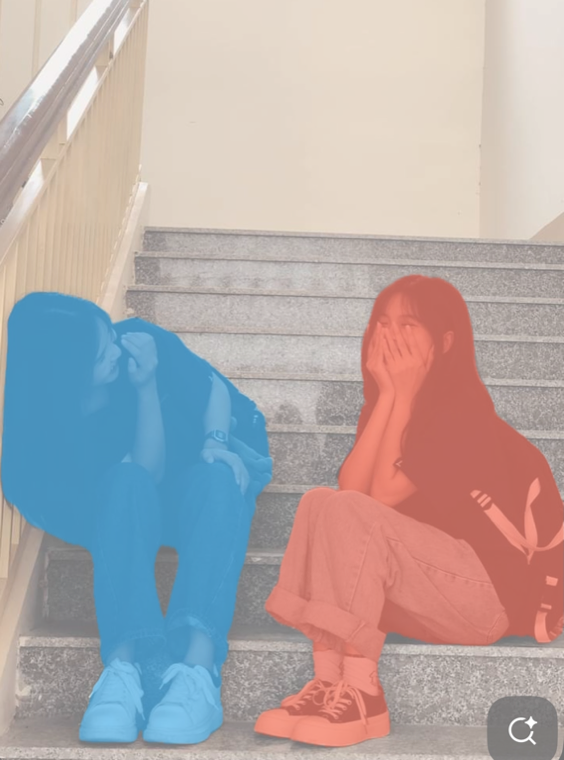
Jodu does all of this with [Apple's Vision framework](https://developer.apple.com/documentation/vision), the same on-device image models built into iOS. It first asks Vision for a [foreground instance mask](https://developer.apple.com/documentation/vision/vngenerateforegroundinstancemaskrequest), which finds the distinct foreground shapes in the photo. When two people land in the same shape, Jodu looks for faces with [face detection](https://developer.apple.com/documentation/vision/vndetectfacerectanglesrequest) and tries to split them along the line between their faces. If the faces are missing, or the bodies overlap too much for a clean line, it keeps them as one.

<div class="dual-figure">
<figure style="flex:0 1 230px;max-width:230px;margin:0;text-align:center;"><img src="/assets/blog/cutout-person-two-shapes.png" alt="Vision tinting two people with a gap as two separate foreground shapes, blue and red." style="width:100%;margin:0;"><figcaption style="font-family:var(--f-typewriter);font-size:.78rem;color:var(--c-muted);letter-spacing:.04em;margin-top:8px;line-height:1.3;">Two shapes, so each can be lifted alone</figcaption></figure>
<figure style="flex:0 1 230px;max-width:230px;margin:0;text-align:center;"><img src="/assets/blog/cutout-person-one-shape.png" alt="Vision tinting two touching people as a single foreground shape in one color." style="width:100%;margin:0;"><figcaption style="font-family:var(--f-typewriter);font-size:.78rem;color:var(--c-muted);letter-spacing:.04em;margin-top:8px;line-height:1.3;">One shape, so they stay together</figcaption></figure>
</div>

The whole thing runs on your phone. The photo never uploads, and it works with no signal. That matters most with photos of people, which is exactly what group shots are.

## Tips for cutting out one person cleanly

- Press directly on the person you want. The press point is what picks the subject, so aim for the middle of their body or face.
- A little space helps. If two people are touching, even a small visible gap gives the cut a line to follow.
- Faces forward beats backs turned. Visible faces are what let Jodu tell two overlapping people apart.
- Hair is the hard part for any tool. A border or torn-paper edge hides small rough spots and usually looks better anyway.
- If the photo is dense, crop in first so the person you want is the clear main subject.

## What to do with the cutout

Once you've lifted one person, the fun starts. Turn them into a sticker with a clean border, drop them onto a new background, or build a few cutouts into a collage. Cutouts are the backbone of most [aesthetic collage apps](/blog/best-aesthetic-collage-apps/), and they line up nicely into a [seamless Instagram carousel](/blog/panorama-instagram-carousel/).

## FAQ

### How do you separate two people in a photo on iPhone?
In a free app like Jodu, open the photo, press and hold on the person you want, and tap Remove BG. Jodu isolates that one person on-device, so you can lift each of them separately. If the two stand apart, you can pick either one; if they overlap with no visible faces, they come out together as one cutout.

### How do I choose which person gets cut out?
The spot you press decides it. Press and hold directly on the person you want to keep, and Jodu lifts the subject at that point rather than the whole group.

### Why does Jodu cut out both people instead of one?
Because the photo shows them as one shape. Two people touching, especially with their backs to the camera, have no visible gap or faces to split along. Rather than slice through a body and produce a broken cutout, Jodu keeps them together as one clean cutout.

### Does cutting out a person upload my photo anywhere?
No. Jodu runs the entire cutout on your iPhone using Apple's Vision framework, so the photo never leaves your device and it works with no signal.

### Is it free to cut people out of photos?
Yes. Jodu does one-tap on-device cutouts for free. Free exports carry a small watermark, which a Pro upgrade removes.

<script type="application/ld+json">
{"@context":"https://schema.org","@graph":[
{"@type":"HowTo","name":"How to separate two people in a photo on iPhone","description":"Separate two people in a photo on iPhone and lift each one on their own, free and on-device, with Jodu.","tool":{"@type":"HowToTool","name":"Jodu"},"step":[
{"@type":"HowToStep","position":1,"name":"Add the group photo","text":"Open Jodu, start a project, drop in the group photo, and tap it once to select it."},
{"@type":"HowToStep","position":2,"name":"Press and hold on the person you want","text":"Press and hold on the exact person you want to keep. The press point decides which subject is lifted."},
{"@type":"HowToStep","position":3,"name":"Tap Remove BG","text":"Tap Remove BG and Jodu isolates that one person off the photo in about a second, on-device with no upload."},
{"@type":"HowToStep","position":4,"name":"Add an edge and place them","text":"Add a Border or torn-paper Effect, then move, resize, and layer the cutout into a collage."}
]},
{"@type":"FAQPage","mainEntity":[
{"@type":"Question","name":"How do you separate two people in a photo on iPhone?","acceptedAnswer":{"@type":"Answer","text":"In a free app like Jodu, open the photo, press and hold on the person you want, and tap Remove BG. Jodu isolates that one person on-device, so you can lift each of them separately. If the two stand apart you can pick either one; if they overlap with no visible faces, they come out together as one cutout."}},
{"@type":"Question","name":"How do I choose which person gets cut out?","acceptedAnswer":{"@type":"Answer","text":"The spot you press decides it. Press and hold directly on the person you want to keep, and Jodu lifts the subject at that point rather than the whole group."}},
{"@type":"Question","name":"Why does Jodu cut out both people instead of one?","acceptedAnswer":{"@type":"Answer","text":"Because the photo shows them as one shape. Two people touching, especially with their backs to the camera, have no visible gap or faces to split along. Rather than slice through a body and produce a broken cutout, Jodu keeps them together as one clean cutout."}},
{"@type":"Question","name":"Does cutting out a person upload my photo anywhere?","acceptedAnswer":{"@type":"Answer","text":"No. Jodu runs the entire cutout on your iPhone using Apple's Vision framework, so the photo never leaves your device and it works with no signal."}},
{"@type":"Question","name":"Is it free to cut people out of photos?","acceptedAnswer":{"@type":"Answer","text":"Yes. Jodu does one-tap on-device cutouts for free. Free exports carry a small watermark, which a Pro upgrade removes."}}
]}
]}
</script>
</content>
</invoke>

---

Source: https://jodu.app/blog/separate-two-people-in-a-photo-iphone/

A free iPhone app with one-tap on-device cutouts. Lift one person from a group shot, add a border, and drop them into a collage. Nothing uploads.