# How to Put Text Behind You in a Video

> Put text behind yourself in a video on iPhone. Jodu tracks you through the clip, slides your words in between you and the background, and saves a new video, all on your phone.

You've seen the trend: a big title like "Day in my life" sitting behind the person in the clip.
The background shows around the letters, and the person walks in front of them as if the words were part of the scene.
It looks like something from a desktop editor with masking and keyframes.
On iPhone it takes one long-press and one button.

<video class="post-video" autoplay muted loop playsinline preload="metadata" poster="/assets/blog/text-behind-demo.jpg"><source src="/assets/blog/text-behind-demo.mp4" type="video/mp4"></video>
<span class="post-video-cap">"Day in my life" tucked behind the subject, exported straight from Jodu.</span>

> **TL;DR:** Add your clip to a Jodu project, long-press on yourself in the video, and wait for **Tracking subject** to finish. Tap **Text Behind**, type your words, then size and place them. Export as **Animated Video**. Jodu cuts you out of every frame on your phone, so the text stays behind you as you move.

## The short version

<div class="steps">

<div class="step"><div class="step-num">1</div><div class="step-text"><p><strong>Add your clip.</strong> Start a project in Jodu (the 9:16 Story size suits Reels and TikTok) and tap <strong>Add Media</strong> to pick a video. Clips can be up to 15 seconds, and the trim sheet lets you choose which 15. Stretch the clip to fill the canvas.</p></div></div>

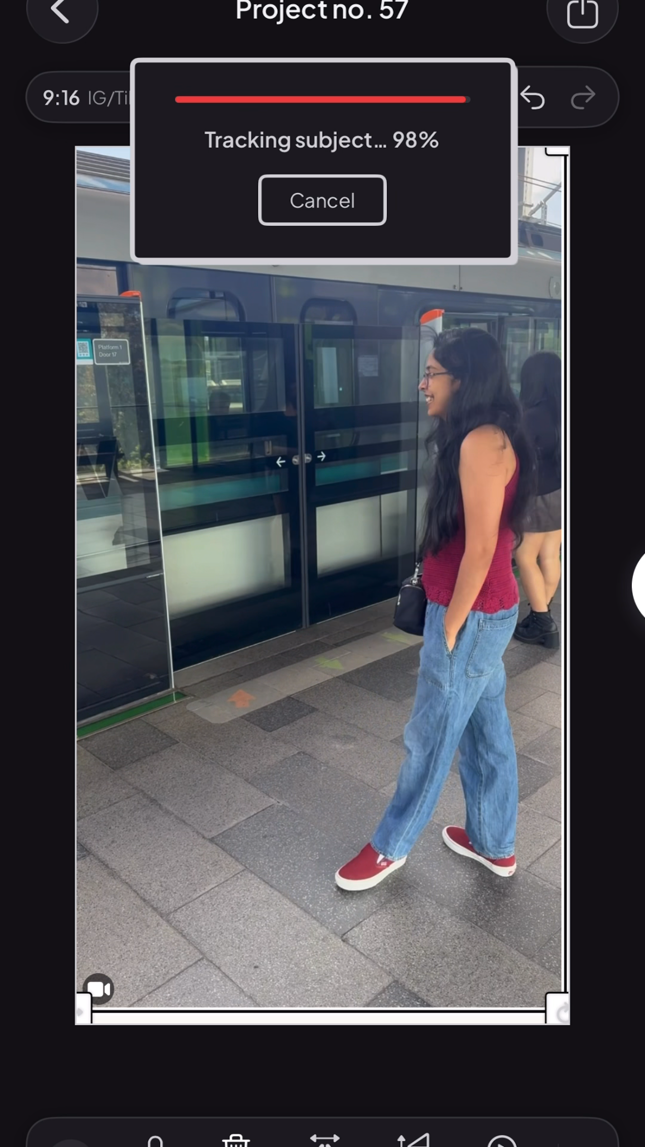
<div class="step"><div class="step-num">2</div><div class="step-text"><p><strong>Long-press on yourself.</strong> Press and hold on the person in the video. Jodu shows <strong>Tracking subject…</strong> with a percentage while it finds you in every frame of the clip. A short clip takes a few seconds.</p></div><figure class="step-media"><img src="/assets/blog/text-behind-tracking.png" alt="Jodu's Tracking subject progress box over a video of a woman standing on a train platform." loading="lazy"></figure></div>

<div class="step"><div class="step-num">3</div><div class="step-text"><p><strong>Tap Text Behind.</strong> When tracking finishes, the background flashes to a checkerboard to show the cutout, and a bar appears with <strong>Effects</strong>, <strong>Remove BG</strong>, <strong>Text Behind</strong>, and <strong>Copy</strong>. Tap <strong>Text Behind</strong> and the keyboard opens on a new text layer that already sits behind you.</p></div></div>

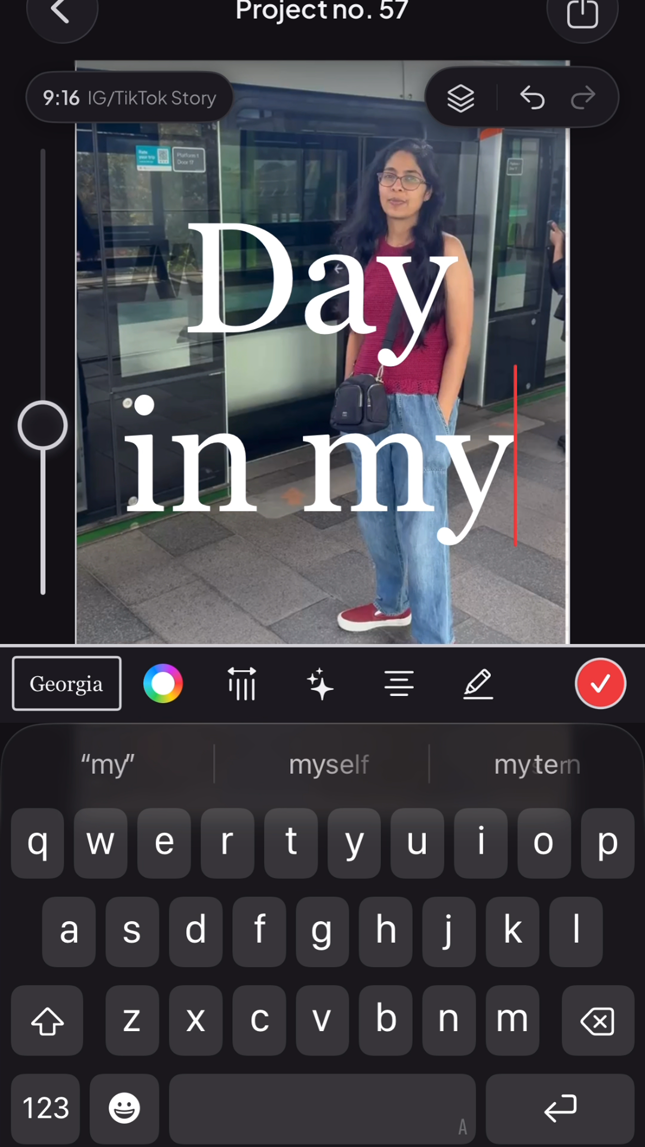
<div class="step"><div class="step-num">4</div><div class="step-text"><p><strong>Type your words.</strong> They start big and white, and you can watch them land behind you as you type. Change the font or color from the bar above the keyboard, then tap the check mark.</p></div><figure class="step-media"><img src="/assets/blog/text-behind-typing.png" alt="Typing Day in my life in Jodu, with the large serif letters already sitting behind the woman in the clip." loading="lazy"></figure></div>

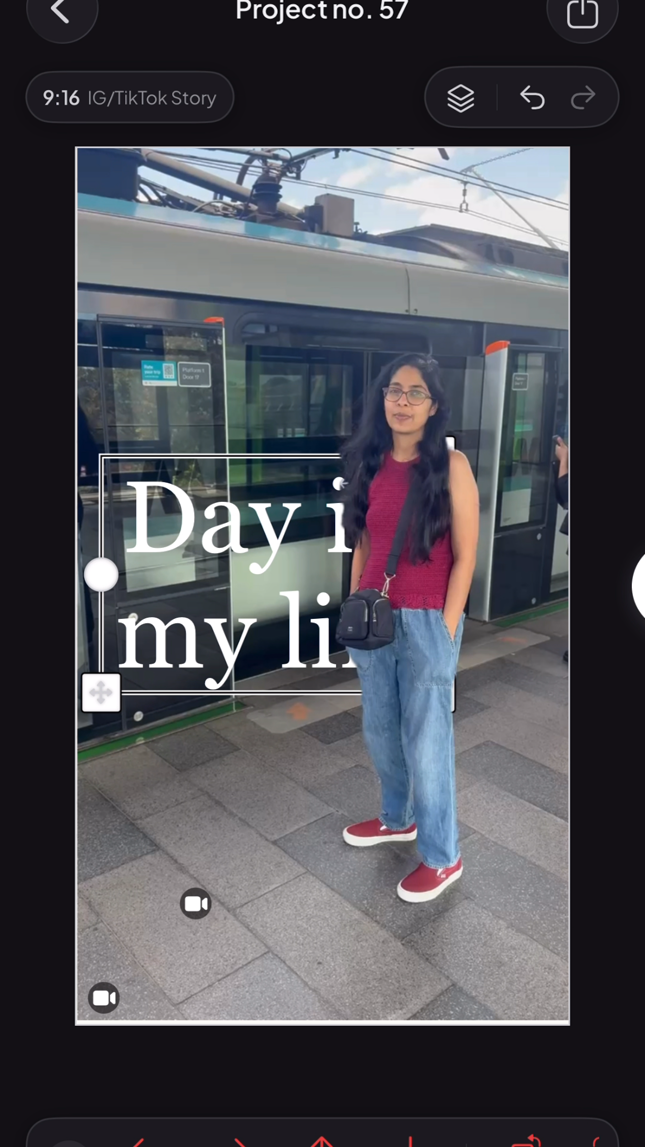
<div class="step"><div class="step-num">5</div><div class="step-text"><p><strong>Size and place it.</strong> Pinch to resize and drag the text so part of it overlaps you. The overlap is what sells the effect: a few letters hidden behind your shoulder look far better than text sitting off to the side.</p></div><figure class="step-media"><img src="/assets/blog/text-behind-placed.png" alt="The Day in my life text resized and moved so its right edge is hidden behind the woman's body." loading="lazy"></figure></div>

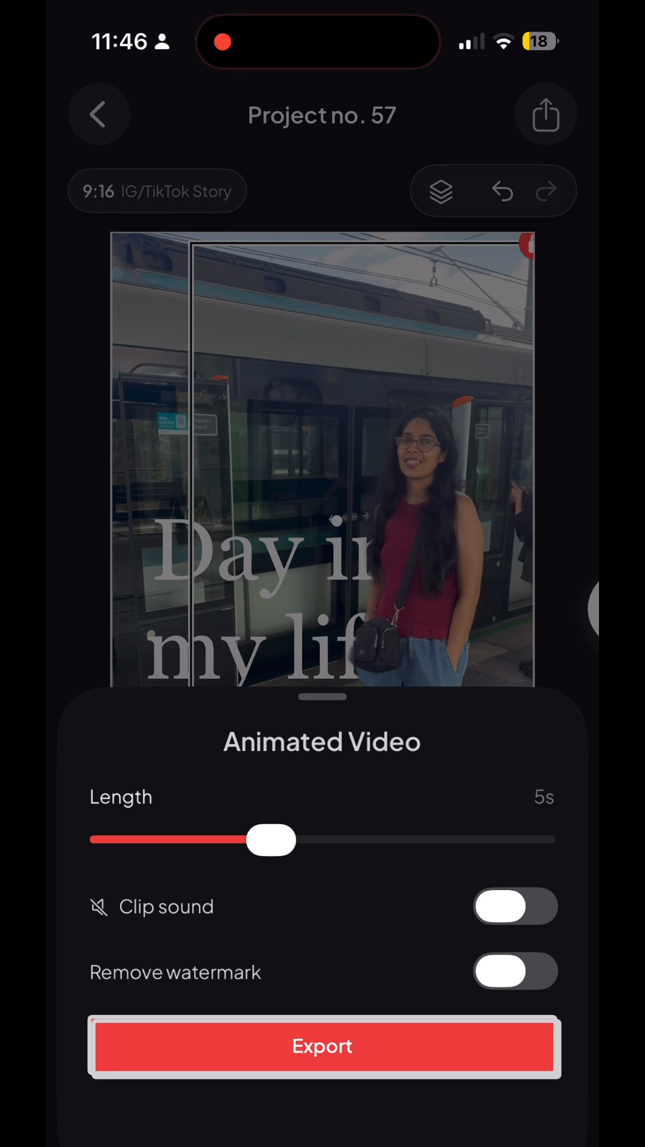
<div class="step"><div class="step-num">6</div><div class="step-text"><p><strong>Export as Animated Video.</strong> Tap the share icon and choose <strong>Animated Video</strong>. Turn on <strong>Clip sound</strong> if you want the original audio, tap <strong>Export</strong>, then <strong>Save to Photos</strong>.</p></div><figure class="step-media"><img src="/assets/blog/text-behind-export.png" alt="Jodu's Animated Video export sheet with a Length slider, Clip sound and Remove watermark toggles, and an Export button." loading="lazy"></figure></div>

</div>

<div class="cta-inline"><span class="lead">Try it on your own clip</span><a class="btn-download" href="https://apps.apple.com/app/jodu-app/id6759936736" target="_blank" rel="noopener"><svg viewBox="0 0 24 24" aria-hidden="true"><path d="M17.05 12.04c-.03-2.8 2.28-4.15 2.38-4.21-1.3-1.9-3.32-2.16-4.04-2.19-1.72-.17-3.36 1.01-4.23 1.01-.88 0-2.22-.99-3.65-.96-1.88.03-3.61 1.09-4.58 2.77-1.95 3.38-.5 8.39 1.4 11.15.93 1.35 2.04 2.86 3.49 2.81 1.4-.06 1.93-.91 3.63-.91 1.69 0 2.17.91 3.66.88 1.51-.03 2.47-1.38 3.39-2.74 1.07-1.57 1.51-3.09 1.53-3.17-.03-.01-2.94-1.13-2.98-4.44zM14.5 4.07c.76-.93 1.28-2.21 1.14-3.49-1.1.05-2.45.74-3.24 1.66-.71.81-1.33 2.12-1.16 3.37 1.23.1 2.49-.62 3.26-1.54z"/></svg> Download Jodu</a></div>

## What Text Behind actually does

Text Behind is a shortcut for a three-layer sandwich.
At the bottom is your original clip.
In the middle is the new text layer.
On top is a cutout of you, tracked through every frame, with the background removed.

Because the top layer is just you, the text shows everywhere except where your body is.
When you move, the cutout moves with you, so the letters disappear behind you and reappear as you pass.
You can see the three layers in the layers panel and move or restyle each one like any other layer.

If you'd rather build the sandwich yourself, tap **Copy** instead of Text Behind.
That puts the cutout on top of the original without adding text, and you can slot any layer in between: a sticker, a shape, a second photo.

## Tips for a clean result

- **Pick a clip where you stand out.** Tracking works best when you're clearly separate from the background, not half hidden behind a pole or blending into a crowd.
- **Keep yourself in frame.** If you walk out of the shot, there's nothing to track for those frames.
- **Use big, heavy letters.** Thin fonts barely get covered, so the "behind" part goes unnoticed. A chunky serif or bold sans gives your body more to hide.
- **Overlap on purpose.** Put the middle of the text across your torso or shoulder, where you move the least, so the hidden letters stay hidden.
- **Add an edge if the background is busy.** A thin outline or shadow keeps white text readable as the scene behind it changes. The [add text to video guide](/blog/add-text-to-video-iphone/) covers the styles.
- **Make the text move.** The text layer accepts the usual text animations, so the title can type itself out behind you. See [animated text over video](/blog/animated-text-video/).

## Does this upload my video?

No.
Jodu finds and tracks you with Apple's on-device [Vision](https://developer.apple.com/documentation/vision) framework and renders the export with AVFoundation, all on your iPhone.
Your clip never leaves the phone, and the whole thing works offline.
It's the same on-device cutout that powers Jodu's [photo background remover](/blog/remove-photo-background-iphone/), applied to every frame of the video.

## FAQ

### How do I put text behind myself in a video on iPhone?
Add the clip to a Jodu project, long-press on yourself, and wait for tracking to finish. Tap Text Behind, type your words, and drag them so they overlap you. Export as Animated Video and the text stays behind you for the whole clip.

### Does it work if I'm moving around?
Yes. Jodu tracks you frame by frame, so the cutout follows you as you walk, turn, or move your arms. It works best when you stay in the shot and aren't hidden behind other objects.

### How long can the video be?
Up to 15 seconds per clip. If your video is longer, the trim sheet lets you pick which 15 seconds to use before you start.

### Can I put a sticker or photo behind me instead of text?
Yes. After tracking, tap Copy instead of Text Behind. That adds the cutout of you on top of the original clip, and you can move any sticker, shape, or photo into the layer between them.

### Can I change the text after I've placed it?
Yes. The text is a normal layer. Tap it to edit the words, font, or color, or drag and pinch to move it. It stays behind the cutout.

<script type="application/ld+json">
{"@context":"https://schema.org","@graph":[
{"@type":"VideoObject","name":"Text behind a person in a video, made in Jodu","description":"The title Day in my life placed behind a woman in a video clip with Jodu's Text Behind feature, exported on iPhone.","thumbnailUrl":"https://jodu.app/assets/blog/text-behind-demo.jpg","contentUrl":"https://jodu.app/assets/blog/text-behind-demo.mp4","uploadDate":"2026-11-06T08:00:00+00:00","duration":"PT5S"},
{"@type":"HowTo","name":"How to put text behind you in a video on iPhone","description":"Put text behind yourself in a video on iPhone with Jodu's on-device subject tracking and Text Behind.","tool":{"@type":"HowToTool","name":"Jodu"},"step":[
{"@type":"HowToStep","position":1,"name":"Add your clip","text":"Start a project in Jodu, tap Add Media, and pick a video up to 15 seconds long. Stretch it to fill the canvas."},
{"@type":"HowToStep","position":2,"name":"Long-press on yourself","text":"Press and hold on the person in the video. Jodu shows Tracking subject with a percentage while it finds you in every frame."},
{"@type":"HowToStep","position":3,"name":"Tap Text Behind","text":"When tracking finishes, tap Text Behind in the bar. A new text layer opens for typing, already placed between the original clip and the cutout of you."},
{"@type":"HowToStep","position":4,"name":"Type your words","text":"Type your text and change the font or color from the bar above the keyboard, then tap the check mark."},
{"@type":"HowToStep","position":5,"name":"Size and place it","text":"Pinch to resize and drag the text so part of it overlaps you. The overlapping letters disappear behind your body."},
{"@type":"HowToStep","position":6,"name":"Export as Animated Video","text":"Tap the share icon, choose Animated Video, turn on Clip sound if you want audio, tap Export, then Save to Photos."}
]},
{"@type":"FAQPage","mainEntity":[
{"@type":"Question","name":"How do I put text behind myself in a video on iPhone?","acceptedAnswer":{"@type":"Answer","text":"Add the clip to a Jodu project, long-press on yourself, and wait for tracking to finish. Tap Text Behind, type your words, and drag them so they overlap you. Export as Animated Video and the text stays behind you for the whole clip."}},
{"@type":"Question","name":"Does it work if I'm moving around?","acceptedAnswer":{"@type":"Answer","text":"Yes. Jodu tracks you frame by frame, so the cutout follows you as you walk, turn, or move your arms. It works best when you stay in the shot and aren't hidden behind other objects."}},
{"@type":"Question","name":"How long can the video be?","acceptedAnswer":{"@type":"Answer","text":"Up to 15 seconds per clip. If your video is longer, the trim sheet lets you pick which 15 seconds to use before you start."}},
{"@type":"Question","name":"Can I put a sticker or photo behind me instead of text?","acceptedAnswer":{"@type":"Answer","text":"Yes. After tracking, tap Copy instead of Text Behind. That adds the cutout of you on top of the original clip, and you can move any sticker, shape, or photo into the layer between them."}},
{"@type":"Question","name":"Can I change the text after I've placed it?","acceptedAnswer":{"@type":"Answer","text":"Yes. The text is a normal layer. Tap it to edit the words, font, or color, or drag and pinch to move it. It stays behind the cutout."}}
]}
]}
</script>

---

Source: https://jodu.app/blog/text-behind-person-video/

An iPhone app that tracks you through a video clip and tucks your text in behind you, so the words sit between you and the background. Everything runs on your phone.