
Static text on a video is fine. Text that types itself out, or shimmers, or pops in letter by letter is what makes a clip feel made rather than slapped together. That kind of moving text is usually locked behind a desktop editor or a paid app. You can do it on your iPhone for free, and it bakes straight into the saved video so it plays the same everywhere you post it.
A Type animation over a clip, exported straight from Jodu.
TL;DR: Add a clip and a text layer in Jodu, open the Animate panel, and pick a Text motion (Type, Stagger, or Shimmer). Export as Animated Video and the text moves in the saved file, baked over your footage. It all runs on your phone.
What "animated text" actually means here
There are two different things people call animated text, and Jodu does both.
The first is the words themselves moving: letters typing out, fading in one at a time, a shine sweeping across them. That's per-letter text animation, and it's the headline feature here.
The second is the whole text block moving onto the screen: sliding up, popping in, drifting. That's an entrance animation, and any layer can have one, text included.
You can stack them. A title that slides up and then types itself out, for instance. Both bake into the exported clip.
The three text motions
Open the Animate panel with a text layer selected and you'll find a Text section. Here's what each one does and where it lands.
| Motion | What it looks like | Reach for it when |
|---|---|---|
| Type | Letters appear one after another, like they're being typed | You want a caption to feel narrated or deliberate |
| Stagger | Letters pop or fade in quickly in sequence | A punchy title that should feel energetic |
| Shimmer | A shine sweeps across the finished words | A name or logo word you want to feel premium |
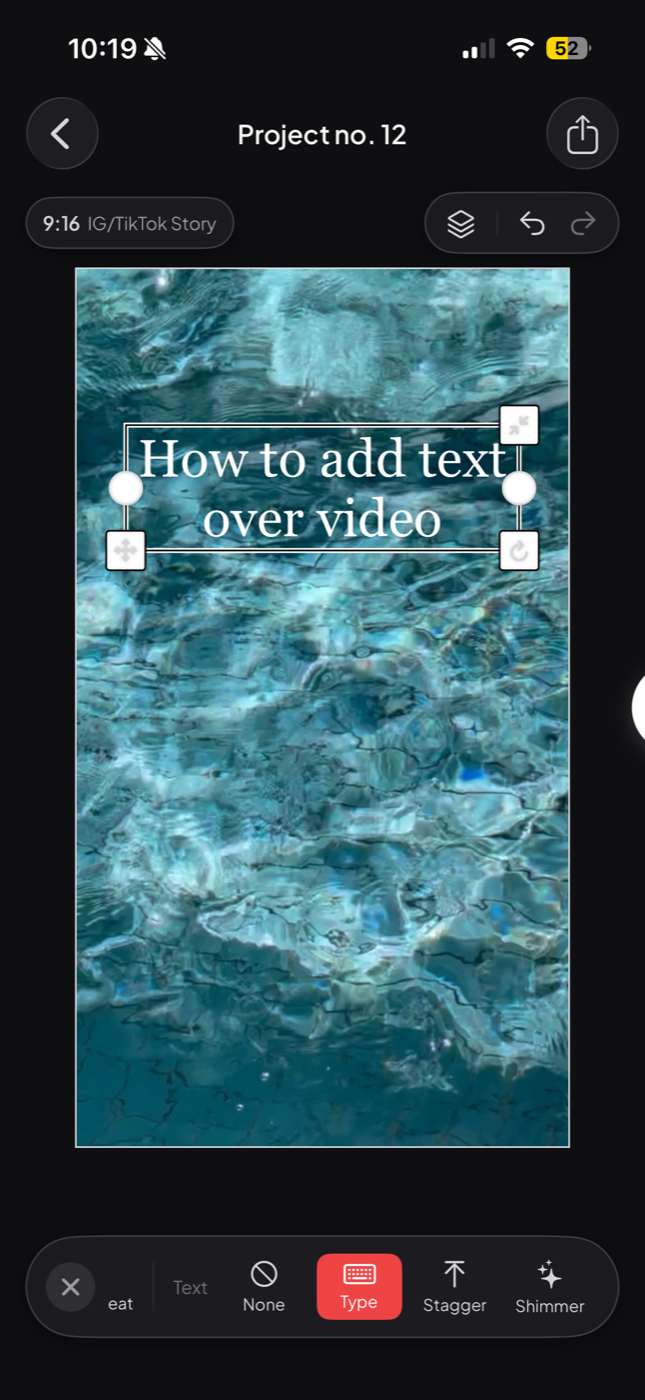
None of these need you to keyframe anything. You pick the motion and Jodu handles the timing.
How to do it
Add your clip. Open Jodu, start a project, tap Add Media and pick a video. Trim it to the part you want. Clips run up to 15 seconds.
Add and style your text. Tap the Text tool, type your words, and give them a font, a color, and an edge so they stay readable over the footage. Drag the block where you want it.
Open Animate and pick a motion. With the text selected, tap Animate, find the Text section, and choose Type, Stagger, or Shimmer. A preview plays right on the canvas so you can feel the timing.
Export as Animated Video. Tap the share icon and choose Animated Video. Jodu renders your footage with the text moving on top and saves a new clip to your camera roll. Turn on Clip sound to keep the audio.
The preview on the canvas matches what gets saved. What you see playing while you tweak is what bakes into the file.
Why the animation survives the export
A lot of apps show you a fun preview and then export a flat, frozen version of the text. Jodu doesn't. When it writes the video, it draws the text fresh for every frame, so a typewriter is mid-typing on one frame and a few letters further along on the next. The motion is real in the file, not a one-time preview trick.
That's also why it plays the same on every phone and every platform. There's no separate animation track that Instagram or TikTok might ignore. It's part of the video itself.
It all happens on your iPhone with AVFoundation. The clip never uploads, and the render works offline. A short animated clip takes a little longer to write than a still does, so keep the app open while the progress bar fills.
Animate more than the text
Since entrance and loop animations work on any layer, your text doesn't have to be the only thing moving. Drop a sticker that pops in on the beat, or a photo cutout that slides into frame over the clip. There's also a whole separate breed of moving text: ransom note letters that shuffle like stop motion. A few small moving pieces read as a designed video, even if the footage underneath is an ordinary phone clip.
If you're building something more layout-driven, the same animations carry into a seamless Instagram carousel, where each slide can animate as someone swipes to it.
Tips for animated text that doesn't look cheap
- One motion, not five. Pick a single text animation and let it carry the clip. Stacking three different ones on one screen reads as noise.
- Keep it readable first. Animation can't save text you can't read. Give it an outline or shadow so it holds up against the moving footage before you add motion.
- Match the motion to the mood. Type feels thoughtful and slow. Stagger feels upbeat. Shimmer feels polished. A frantic shimmer on a calm clip fights itself.
- Short words animate best. Per-letter motion shines on a title or a name. A long sentence typing out can drag, so trim it down.
- Time it to the clip. A 4-second typewriter on a 3-second video gets cut off. Glance at the length and keep the text shorter than the footage.
FAQ
How do I add animated text to a video on iPhone for free?
Use a free app like Jodu. Add a clip and a text layer, open the Animate panel, and pick a Text motion such as Type, Stagger, or Shimmer. Export the project as Animated Video and the moving text bakes into the saved clip. Everything runs on your phone.
What kinds of text animation can I add?
Jodu has three per-letter text motions: Type (letters appear in sequence), Stagger (letters pop or fade in quickly), and Shimmer (a shine sweeps across the words). You can also give the whole text block an entrance animation like a slide or a pop.
Does the animation stay in the saved video?
Yes. Jodu draws the text fresh on every frame as it renders, so the motion is baked into the video file itself. It plays the same on any phone and on Instagram, TikTok, or anywhere else, with no separate animation track to lose.
Is animated text free in Jodu?
The animation tools are free to use. Free exports carry a small Jodu watermark, and a Pro upgrade removes it.
Does it work without internet?
Yes. The whole render happens on your iPhone with Apple's AVFoundation, so the clip never uploads and the export works offline.