
Saving inspiration is easy. Turning twenty saved pins into one finished moodboard is where the work begins. A good Pinterest collage app should help you move from collecting to composing, whether you begin with a template or a blank canvas.
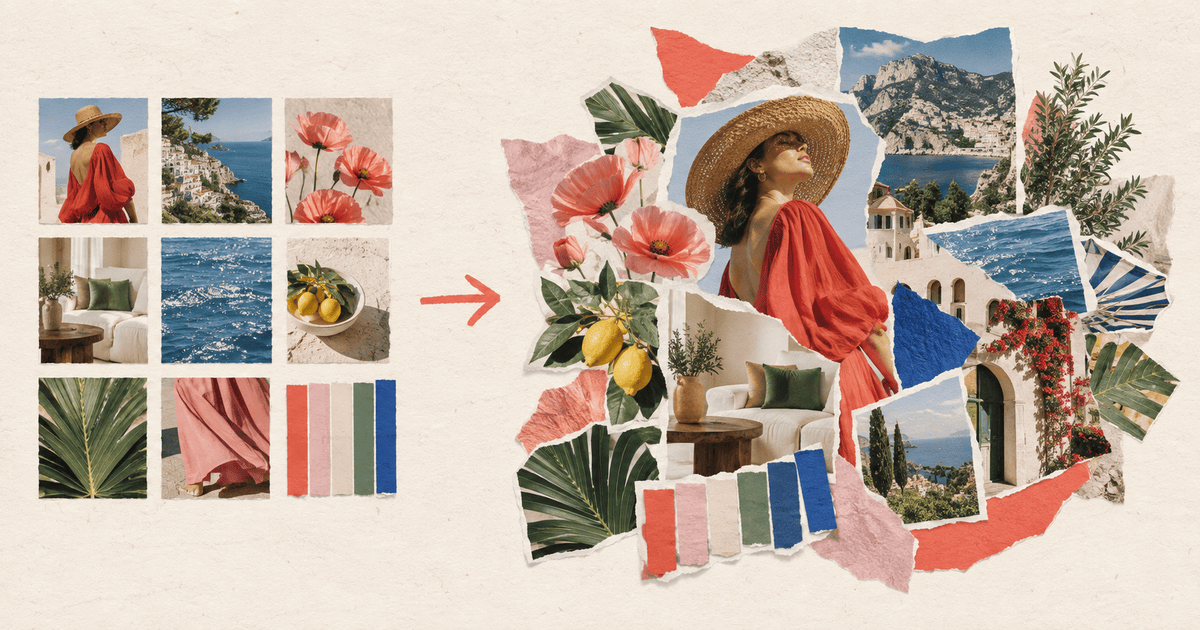
The quick answer: Choose Jodu when you want to import pins from your Pinterest boards, mix them with your own photos, start from a template or blank canvas, and animate items in a tactile iPhone collage. Choose Canva for a broad design library, Milanote for project research, Freeform for collaboration, or Pinterest's own collage tool for a collage that stays inside Pinterest.
The best Pinterest collage apps at a glance
| App | Best for | Pinterest connection | Working style |
|---|---|---|---|
| Jodu | Turning saved pins into finished or animated collages | Imports pins from your boards | Templates or a freeform, layered canvas |
| Pinterest Collages | Interactive and shoppable collages on Pinterest | Built into Pinterest | Cutouts composed and published as a Pin |
| Canva | Fast template-based designs | Bring in the images you want to use | Templates plus a large graphics library |
| Milanote | Research-heavy creative projects | Web clipper for gathering references | Flexible project boards and collaboration |
| Apple Freeform | Shared planning boards | Add images and links manually | Infinite whiteboard |
Availability and pricing can change, so check each app's current listing before choosing a long-term workflow.
1. Jodu: best for making a finished collage from your pins
Jodu connects the collecting step to the making step. Start from a template or a blank canvas, open the photo picker, switch to Pinterest, choose a board, and select the pins you want. They arrive as layers on the canvas rather than a flattened screenshot.
That matters because every piece stays editable. You can resize and rotate it, animate it, put it in one of 13 fillable frames, combine it with camera-roll photos, or use an automatic cutout to lift the subject away from its background. The cutout runs on your iPhone rather than uploading the photo to a background-removal service.
Jodu is the strongest option here for a finished or animated collage with a hand-cut scrapbook feel. It is free forever.
Read the step-by-step guide to turning a Pinterest board into a collage.
2. Pinterest Collages: best for creating inside Pinterest
Pinterest now has its own collage creator. It can turn parts of saved Pins into cutouts, arrange them in layers, and publish the finished collage as a Pin. Product-pin cutouts can also retain shopping information where that feature is available.
Use it when the collage belongs to your Pinterest activity: you want to remix another collage, make something shoppable, or publish directly to your profile. Choose a separate collage app when you want a more private working space, a particular export workflow, or a broader mix of camera-roll and Pinterest material.
3. Canva: best for a broad design library
Canva's collage maker gives you a huge template and graphics library, plus frames, grids, stock imagery and cross-device editing. It is useful when you need a conventional social post, presentation or printable design and want the layout decided for you.
Canva can also work freeform, but its center of gravity is template-driven design. If the page should feel assembled from loose clippings rather than fitted into a branded layout, start with a collage-first app.
4. Milanote: best for professional visual research
Milanote is closer to a creative-project wall than a social collage app. It accepts images, videos, PDFs, color swatches, fonts and notes; its web clipper helps collect references, and boards can be shared for feedback.
Choose it for a brand identity, interior project, photoshoot or film where the board needs commentary and collaboration. Choose Jodu when the final visual itself is the thing you want to post.
5. Apple Freeform: best for a shared planning board
Freeform is already available on current Apple devices. Its boundless canvas accepts photos, links, files, sticky notes and drawings, and several people can work on a board together.
It is excellent for planning. It is less specialized for automatic subject cutouts, scrapbook styling, or polished social export.
How to choose
- Pick Jodu for templates, animated canvas items, automatic cutouts, and an exportable handmade look.
- Pick Pinterest Collages when the finished piece should stay interactive or shoppable on Pinterest.
- Pick Canva for a large graphics library and broad design formats.
- Pick Milanote for research, annotation and client feedback.
- Pick Freeform for a shared idea wall across Apple devices.
The useful distinction is not “Which app replaces Pinterest?” Pinterest is still very good at collecting. The better question is what you want to make after the collecting is done.
Frequently asked questions
Is there an app that turns Pinterest pins into a collage?
Yes. Jodu can import pins from your Pinterest boards as editable image layers on an iPhone collage canvas. You can begin with a template or blank canvas and animate individual items. Pinterest also has a built-in collage tool for collages published within Pinterest.
Can I mix Pinterest pins with my own photos?
Yes. In Jodu, imported pins and camera-roll photos can sit together in the same project. You can frame them, cut out subjects, add text and stickers, and export the result as an image.
Do I need a Pinterest account?
You need a Pinterest account to access your Pinterest boards. You do not need one to build a Jodu collage entirely from photos already on your iPhone.
Which option is best for an aesthetic moodboard?
Use Jodu for a tactile moodboard made from a template or blank canvas, with animated items when you want movement. Choose Canva for a broad design library or Milanote when the board supports a larger professional project.