
If you collect collage inspo on Pinterest, you know the annoying part. You find the perfect pins, and then you screenshot each one, crop the screenshot, save it to your camera roll, and import it into whatever app you're using. Ten pins means ten rounds of that.
There's a shortcut. Jodu connects to your Pinterest account and pulls pins from your boards directly onto the collage canvas. You pick a board, tap the pins you want, and they land as layers you can move, frame, and cut out like any other photo. Here's how it works.
TL;DR — Open Jodu, start a collage, and tap Photo. Switch to the Pinterest tab, tap Connect Pinterest, and log in with your Pinterest account. Pick a board, tap the pins you want (or Select All), and hit Import. The pins drop onto your canvas at full resolution, ready to arrange. It's free, and your Pinterest login stays between you and Pinterest.
Why import instead of screenshot
Screenshots work, but they cost you quality. A screenshot is capped at your screen resolution and usually carries a bit of the Pinterest UI in the corners, so you end up cropping every single one. Importing skips all of it. Jodu pulls the original image from Pinterest at up to 1200 pixels wide, which holds up fine when you scale it on a canvas or export at full size.
It's also just faster. Browsing your own boards inside the app means the inspiration and the canvas live in the same place. You spot a pin, you tap it, it's in the collage.
How to import Pinterest pins into a collage
Start a collage and open the Pinterest tab. Open Jodu, start a new collage, and tap Photo. Along the top of the picker you'll see Gallery, Camera, and Pinterest. Tap Pinterest.
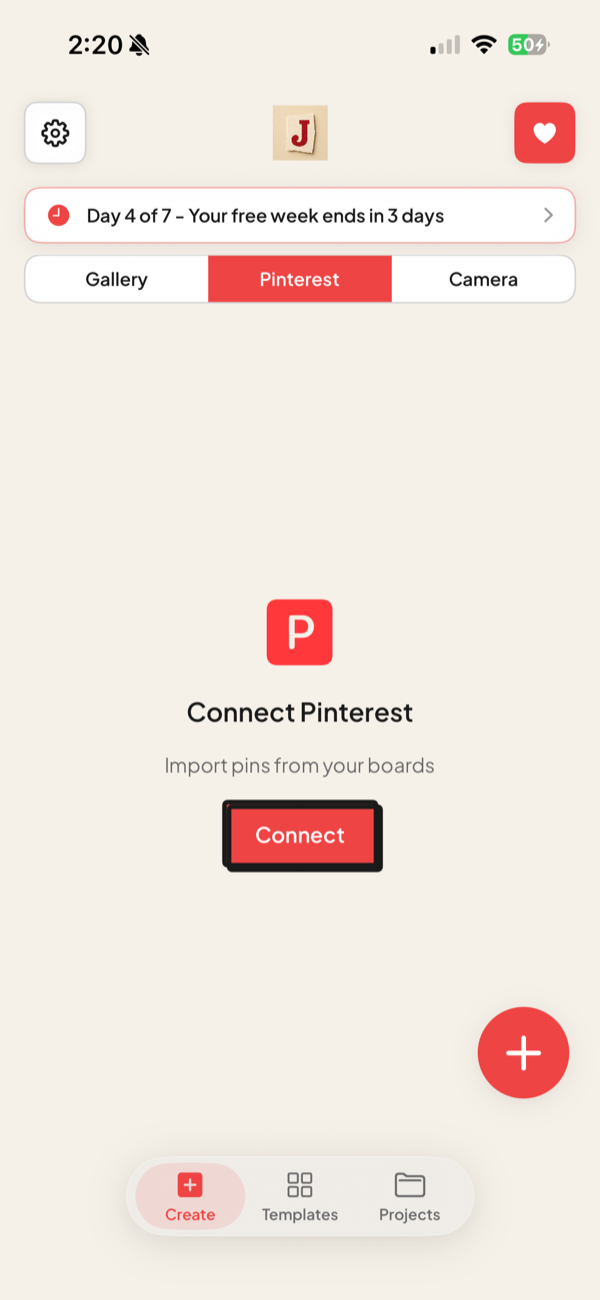
Connect your account. The first time, you'll see a Connect Pinterest button. Tapping it opens the official Pinterest login in a secure browser sheet. You log in on Pinterest's own site, approve read-only access, and you're back in the app. Jodu never sees your password, and it only asks to read your boards and pins. It can't post, edit, or delete anything.
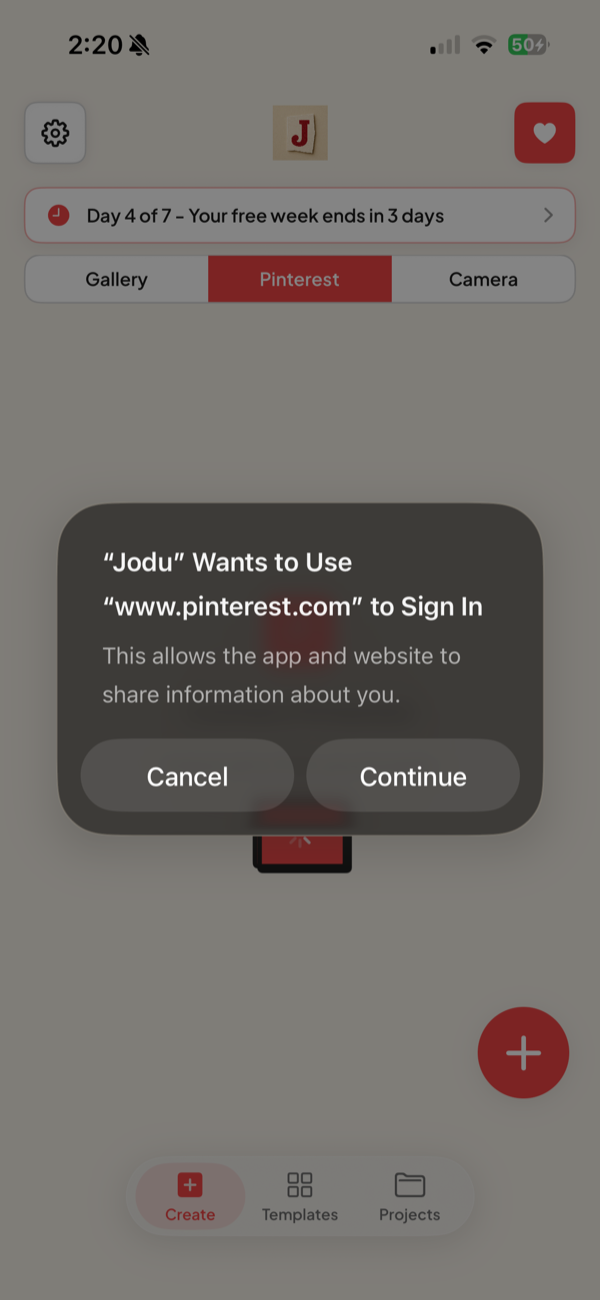
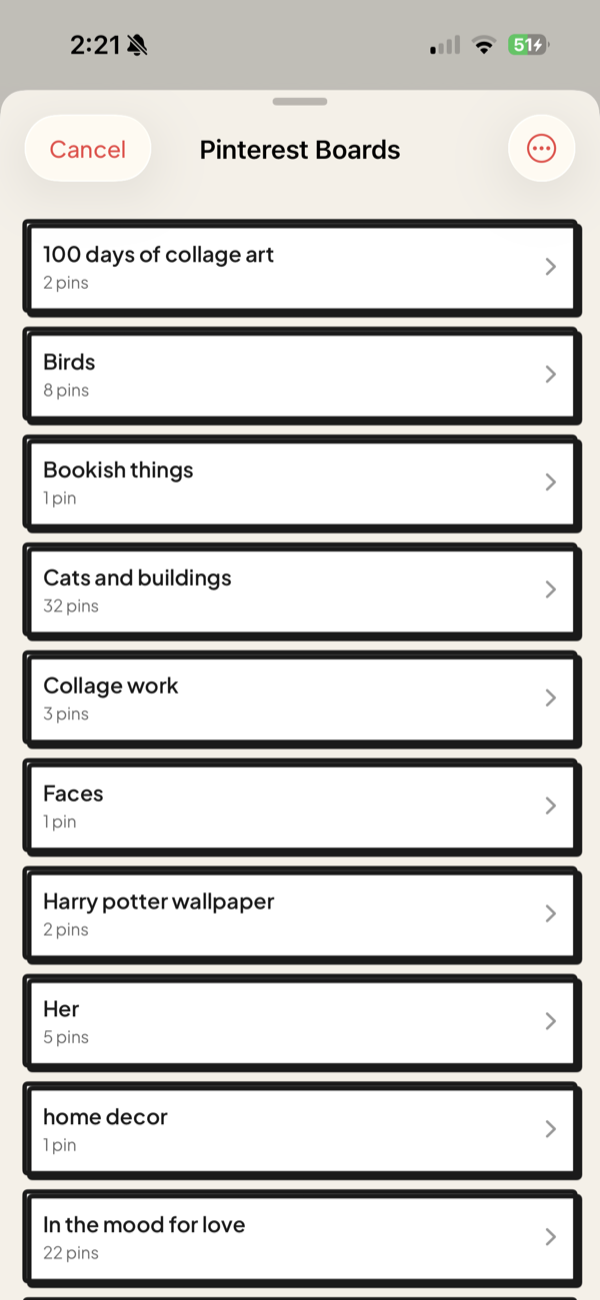
Pick a board. Your boards show up as a list with a thumbnail and a pin count for each. Tap the one with your inspo. If you've got a lot of boards, keep scrolling and they all load in.
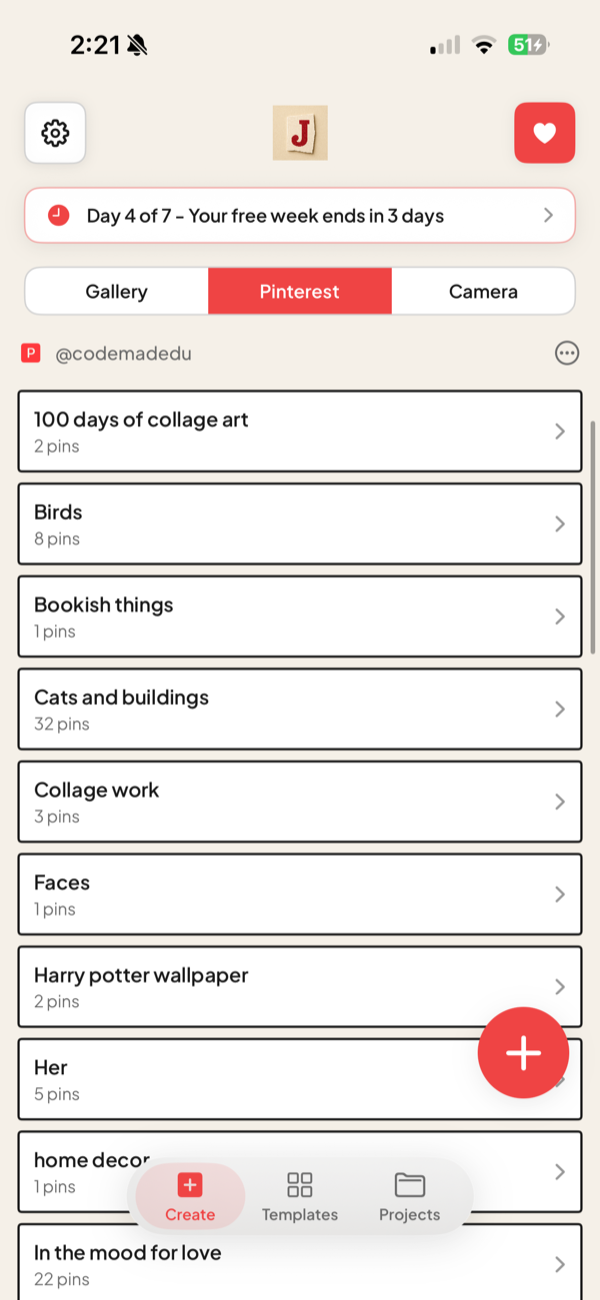
Select your pins. The board opens as a scrollable grid. Tap a pin to select it, tap again to deselect, or use Select All. Each selection gets a numbered badge so you can see the order. You can import up to six pins in one go, and you can come back for more anytime. Video pins are skipped automatically, since a collage wants stills.
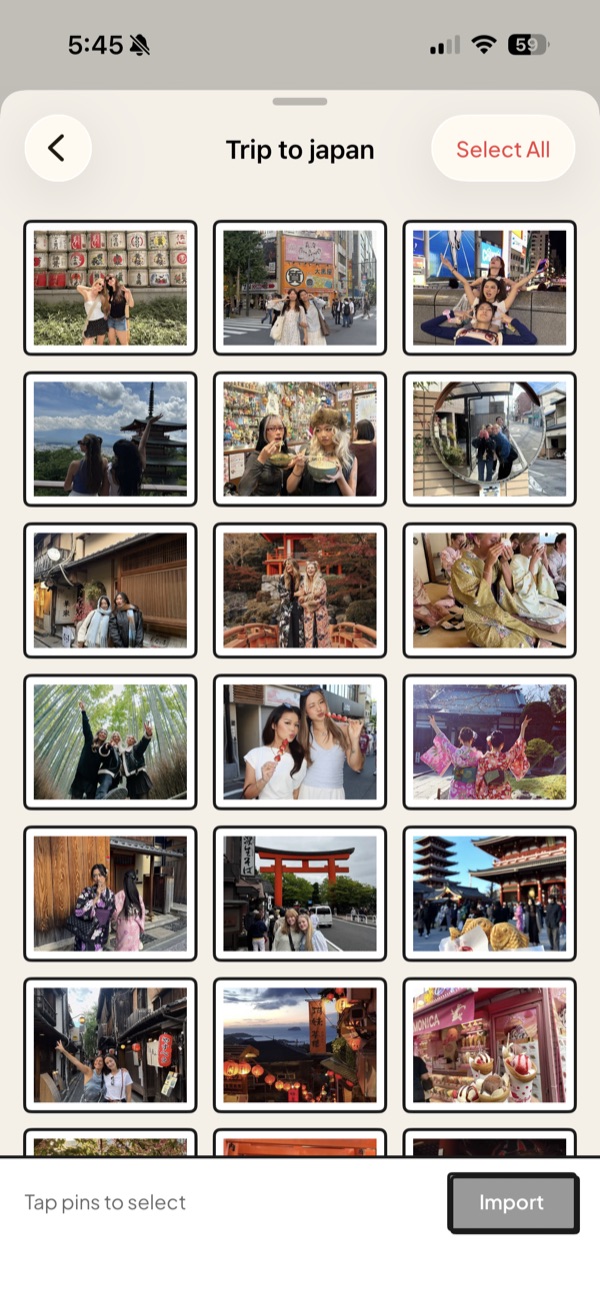
Import. Tap the Import button at the bottom. A progress bar counts the pins down as they download, and a few seconds later they're sitting on your canvas as regular layers. If you started from a layout template, the pins fill the empty photo slots first.
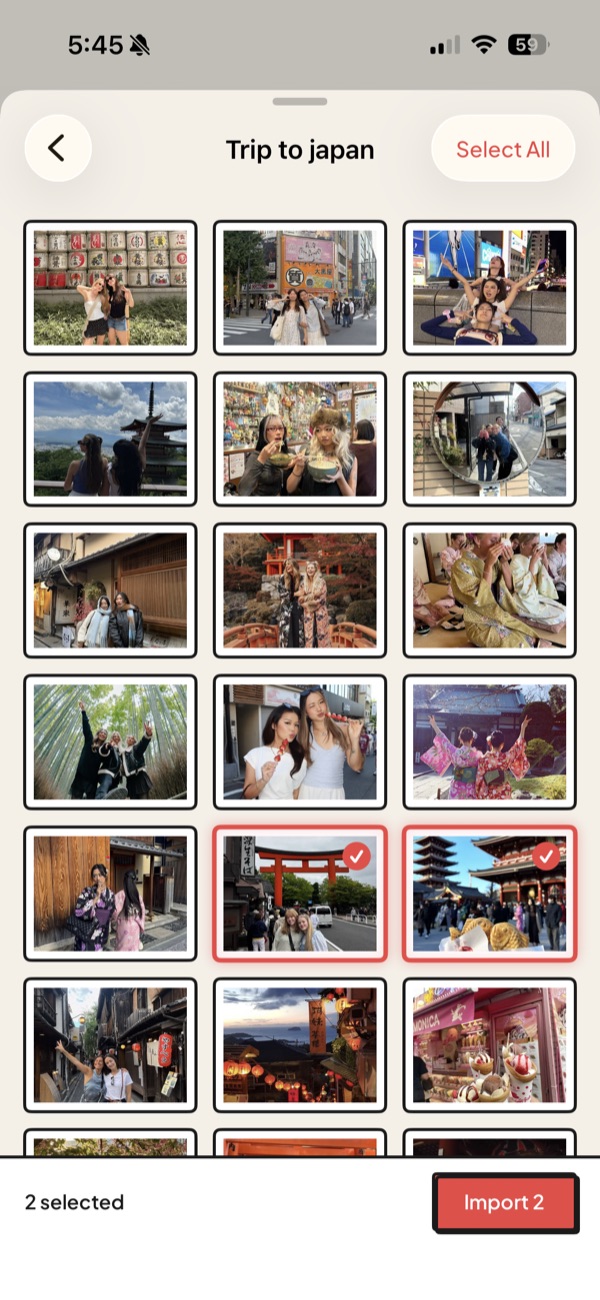
Treat them like any photo. This is the good part. An imported pin isn't second-class. Tap one and you get the full toolbar: Remove BG lifts the subject clean off its background, Effects adds a torn-paper edge or a drop shadow, and the Frames in the sticker panel work on pins too. Pinch, drag, rotate, layer.
That's a Pinterest board turned into a moodboard you actually made, without a single screenshot.
Already in the middle of a collage?
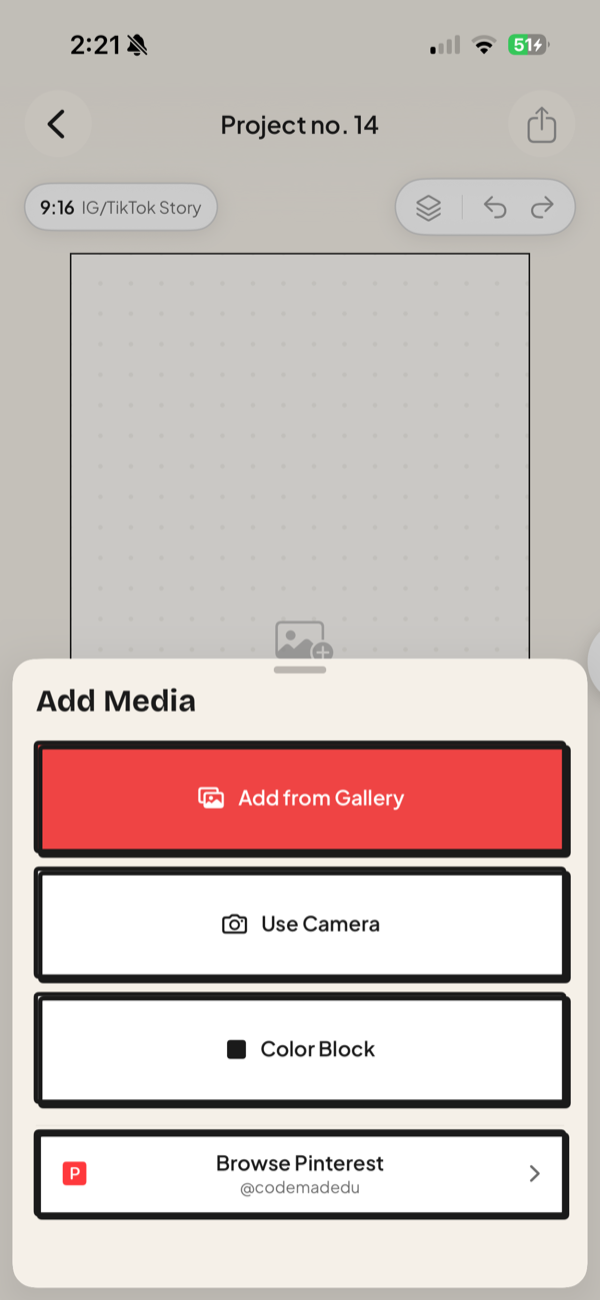
You don't have to start from the Photo tab. If you're already on the canvas, tap the empty photo slot (or the add-media button) and pick Browse Pinterest at the bottom of the sheet. It opens the same board list as a quick sheet, so you can drop a pin in without leaving what you're working on. Pick a board, tap the pins you want, and they land straight in the slot you started from. Everything after that works exactly the same as the full picker flow above.
What to make with a board full of pins
A pile of pins on a canvas is a start, not a finish. A few directions that work well:
- A classic moodboard. Keep the pins mostly rectangular, vary the sizes so one anchors the page, and put a paper texture behind them from BG. Overlap the corners a little. That slight overlap is what makes it read as a board instead of a grid.
- A cutout collage. Run Remove BG on two or three pins and let the cut subjects float over the rest. Mixing full pins with cutouts gives the page depth fast.
- A themed page. Pins from a recipe board plus your own photos of the dish you actually cooked. Travel pins next to your own shots from the trip. The mix of "what I pinned" and "what happened" is half the fun.
- A seamless carousel. Spread the board across a multi-page canvas and post it as one continuous swipe. Here's how seamless carousels work if you haven't made one.
If you want the full collage walkthrough with backgrounds, frames, and text, we wrote one: how to make a photo collage on iPhone. It also sits in our roundup of the best aesthetic collage apps for iPhone, and there's more on apps like Pinterest for making collages if you want to compare.
A note on your account and your pins
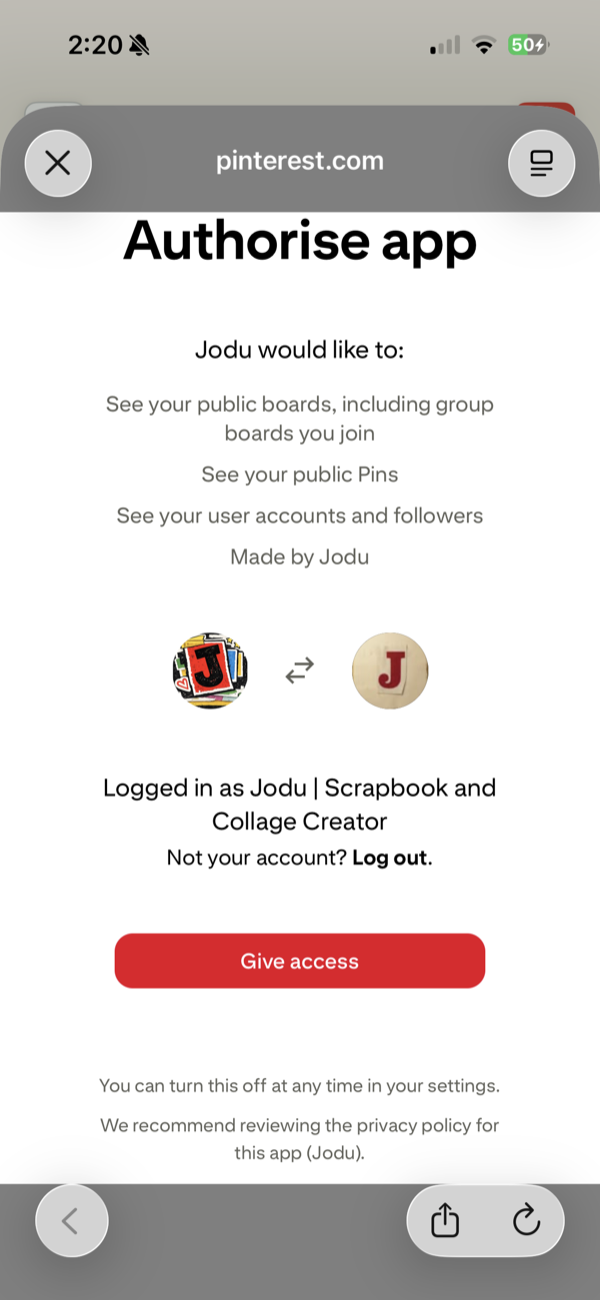
Worth saying plainly. The connection is read-only, your login happens on Pinterest's own page, and the access token is stored in your iPhone's Keychain. Pins you import become part of your collage on your device. Jodu doesn't keep a copy of your boards anywhere, and you can disconnect or switch accounts from the board list whenever you like.
One honest caveat: pins are usually other people's images. For a private moodboard or a journal page, pin away. If you're posting publicly, the polite move is the same one that applies on Pinterest itself: credit where you can, and lean on your own photos for the hero spots.
FAQ
What is the best Pinterest collage app for iPhone?
Jodu is built for exactly this. It connects to your Pinterest account, imports pins from any of your boards straight onto a freeform collage canvas, and gives every pin the same tools as a regular photo: one-tap background removal, frames, effects, and stickers. It's free to download.
Can I make a collage from Pinterest pins without screenshotting them?
Yes. In Jodu, tap Photo, switch to the Pinterest tab, and connect your account. You can then browse your boards inside the app and import pins directly, at higher resolution than a screenshot.
Does Jodu post to my Pinterest or change my boards?
No. The connection is read-only. Jodu can list your boards and read your pins, and that's it. You log in on Pinterest's own page, so the app never sees your password, and you can disconnect at any time.
How many pins can I import at once?
Up to six per import, and you can repeat the import as many times as you want. The limit keeps big boards from overwhelming the canvas (and your phone's memory) in one shot.
Can I remove the background from a Pinterest pin?
Yes. Once a pin is on the canvas it behaves exactly like a photo from your library. Tap it and choose Remove BG to lift the subject out, then add a border, a torn edge, or a shadow. Here's the full guide to removing photo backgrounds on iPhone.
Is the Pinterest import free?
Yes. Connecting Pinterest and importing pins is part of the free app, with no Pro subscription required.